

Using the warehouse simulator
In a demo account no warehouse processes your deliveries, shipments and returns. The warehouse simulator lets you do the warehouse's work yourself, from your dashboard, so you can test how your integration reacts to every step: stock appearing after a delivery is received, a shipment moving to sent with tracking data, a return being confirmed.
Every step changes the delivery, shipment or return exactly as the warehouse would, so you see the results through the same API endpoints you will use in production.
Where to find it
The warehouse simulator is only available in demo accounts. Open a delivery, order or return in the dashboard and you will see the Warehouse simulator card, with the steps the object goes through and the one that comes next. From the card you can:
-
Run the next step.
-
Click Complete all steps to run all the remaining steps in one go.

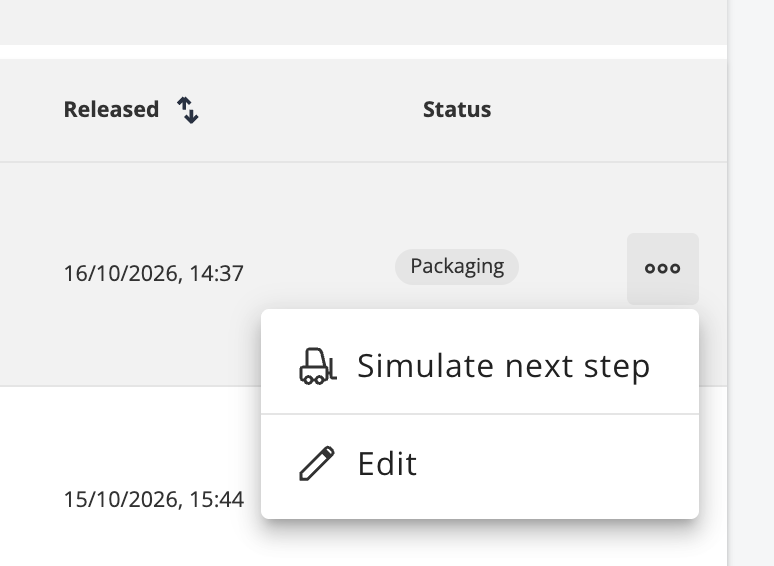
In the delivery, order and return lists you can also choose Simulate next step from a row's actions menu.
Each step takes a few seconds. While a step is running you can't start another one on the same object.
Deliveries
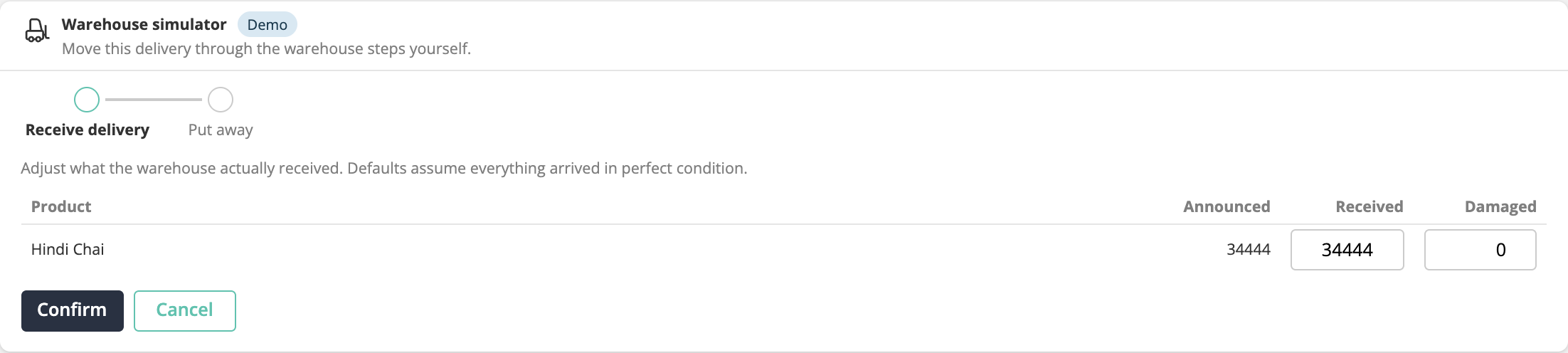
Announce a delivery through the dashboard or the API, then simulate the warehouse receiving it:
| Step | Delivery status after the step | What happens |
|---|---|---|
| Receive delivery | inProcessing | The warehouse counts the delivery. You can adjust, per line, how many items were received and how many of them were damaged. |
| Put away | completed | The received items are stored and the product stock is updated. |
By default, the simulator assumes that everything arrived in perfect condition. After Put away, the stock is available in the product endpoints, and shipments waiting for those products can be fulfilled.
Shipments
Create a shipment through the dashboard or the API. Make sure the products in it have stock first: receive a delivery with the simulator if needed. Then simulate the warehouse fulfilling it:
| Step | Shipment status after the step | What happens |
|---|---|---|
| Release to warehouse | released | The shipment is released to the warehouse. |
| Pick | packaging | The items are picked from storage. |
| Pack | packaging | The items are packed into one or more units (parcels). |
| Print label | packaged | A shipping label is created for each unit. |
| Hand to carrier | sent | The parcels are handed to the carrier. |
| Deliver to end customer | delivered | The carrier delivers the parcels. |
From Print label onwards, the shipment's units contain the carrier, tracking number and tracking URL, as described in Tracking data.
Labels in a demo accountLabels in a demo account are created with a test carrier. Their tracking numbers and tracking URLs are not real and can't be followed on any carrier website.
Returns
A return can start in two ways:
- On a
deliveredshipment, the simulator card offers End customer sends it back. It creates a return for all the items of the shipment. - You can announce a return from the dashboard.
Then simulate the warehouse receiving it:
| Step | Return status after the step | What happens |
|---|---|---|
| Receive return | confirmed | The warehouse checks each item and rates its condition: New, Used or Damaged. New and used items go back into stock; damaged items don't. |
By default, the simulator rates every item as new. You can follow the return through the returns endpoints.
When a step fails
The simulator runs the same checks the warehouse does. If a step can't be completed, for example because a shipment has no stock for its products, the simulator stops at that step and shows the error and a hint on how to fix it. Fix the cause, for example by receiving a delivery for the missing products, and click Try again.
If you get stuck, please contact us and we'll be happy to help.
Updated about 12 hours ago